MON — FRI09:00 → 17:00
Work has a boundary.
Block during your chosen hours.
Use a Scheduled Block to keep distracting apps out of your working day.
 TRIPLE LOCK
THE TRIPLE LOCK MINI-COURSE
A self-paced written mini-course designed to help you reclaim 3+ hours per day*, with a simple 15-minute setup.
A practical system that combines three layers of restriction to interrupt automatic checking, put an endpoint on scrolling and keep useful access when you need it.
✓ 30-day money-back guarantee
*Depending on your current screen time and how much you choose to cut back.
For iPhone · Step-by-step setup
Third-party apps required. Paid blocking features may cost separately.
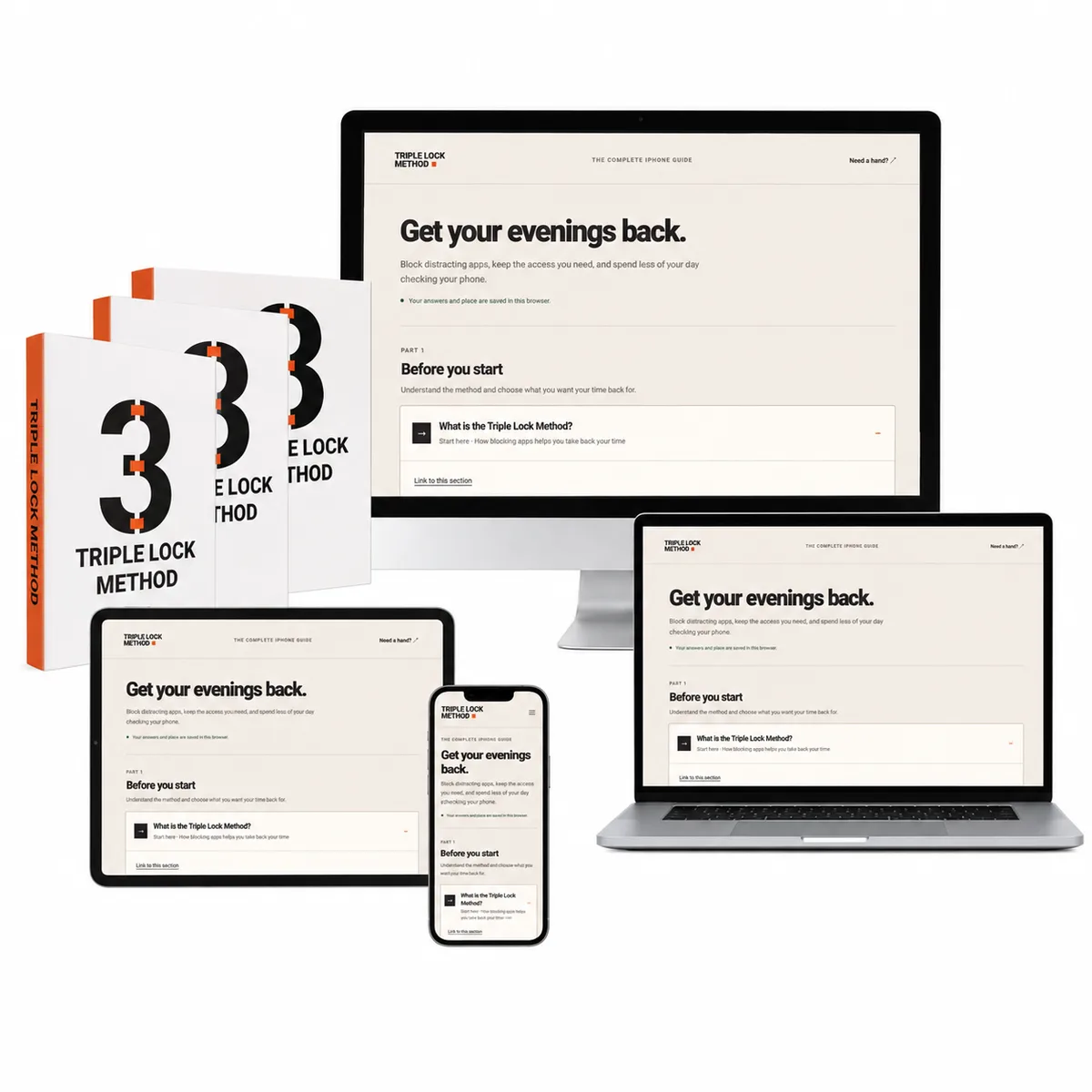
FIRST, HERE’S WHAT YOU CAN CHANGE
Your phone’s settings and blocking apps can stop selected apps from opening. Triple Lock shows you how to combine three restrictions, so your setup fits the way you actually live.
Use a Scheduled Block to keep distracting apps out of your working day.
Set a daily Time Limit for the access you need, without leaving the feed open-ended.
ScreenZen blocks apps all day. Its settings timer makes you wait before entering ScreenZen to unlock them.
Together, these restrictions add friction between an urge and an open feed. You choose the apps, hours and allowance.
INCLUDED IN YOUR MINI-COURSE
Read at your own pace. Your place and saved answers stay in the browser you use.
SAME EVENING. A DIFFERENT DIRECTION.
You sit down to do something that matters. One quick check turns into another video, another feed. Now it’s late, and the thing you wanted to do is still waiting.
Your distracting apps are blocked during the time you chose. You finish a piece of work, head to the gym or meet someone. The evening has something in it you chose.
THE TIME ADDS UP. SO DOES WHAT YOU DO WITH IT.
Three hours of clips, arguments and other people’s lives can leave you with barely a moment you remember. Call it “brainrot”: consuming so much and getting so little from it. Across the years, those hours become a substantial part of your life.
Not all phone use is wasted. The question is how much of it you would choose.
Daily hours × 365 × 50, expressed as 365-day years.
MAKE ROOM FOR SOMETHING REAL
Give the idea you keep talking about a proper working session. Be present with someone you love. Get outside and meet people. Make training a routine.
Maybe you miss your “pre-TikTok brain”—getting absorbed in a film, following an idea, being fully there with someone. You’re making room for that feeling again, and for the things you haven’t done yet.
THIS IS WHAT YOU’RE GETTING
A self-paced online mini-course with written lessons, screenshots and practical examples. Read on your laptop while you set up your iPhone, or switch between the course and your settings.
 Try the sample lesson ↓
TRY A SAMPLE FROM THE GUIDE
Choose a situation to see the kind of practical guidance you get inside.
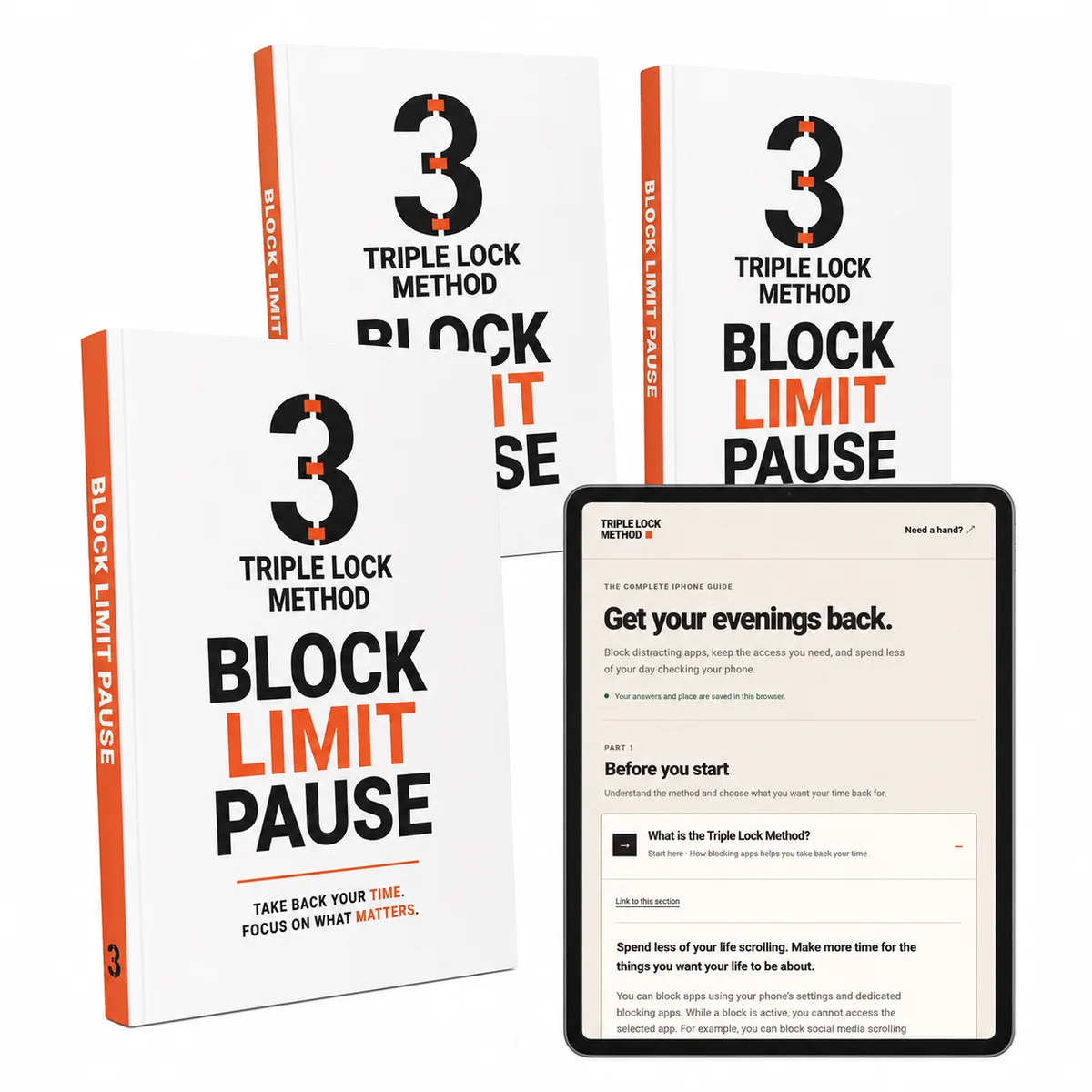
THE SETTINGS, EXPLAINED
Once the core setup is in place, follow the advanced guidance to tighten restrictions on the apps and websites you want out of your day.
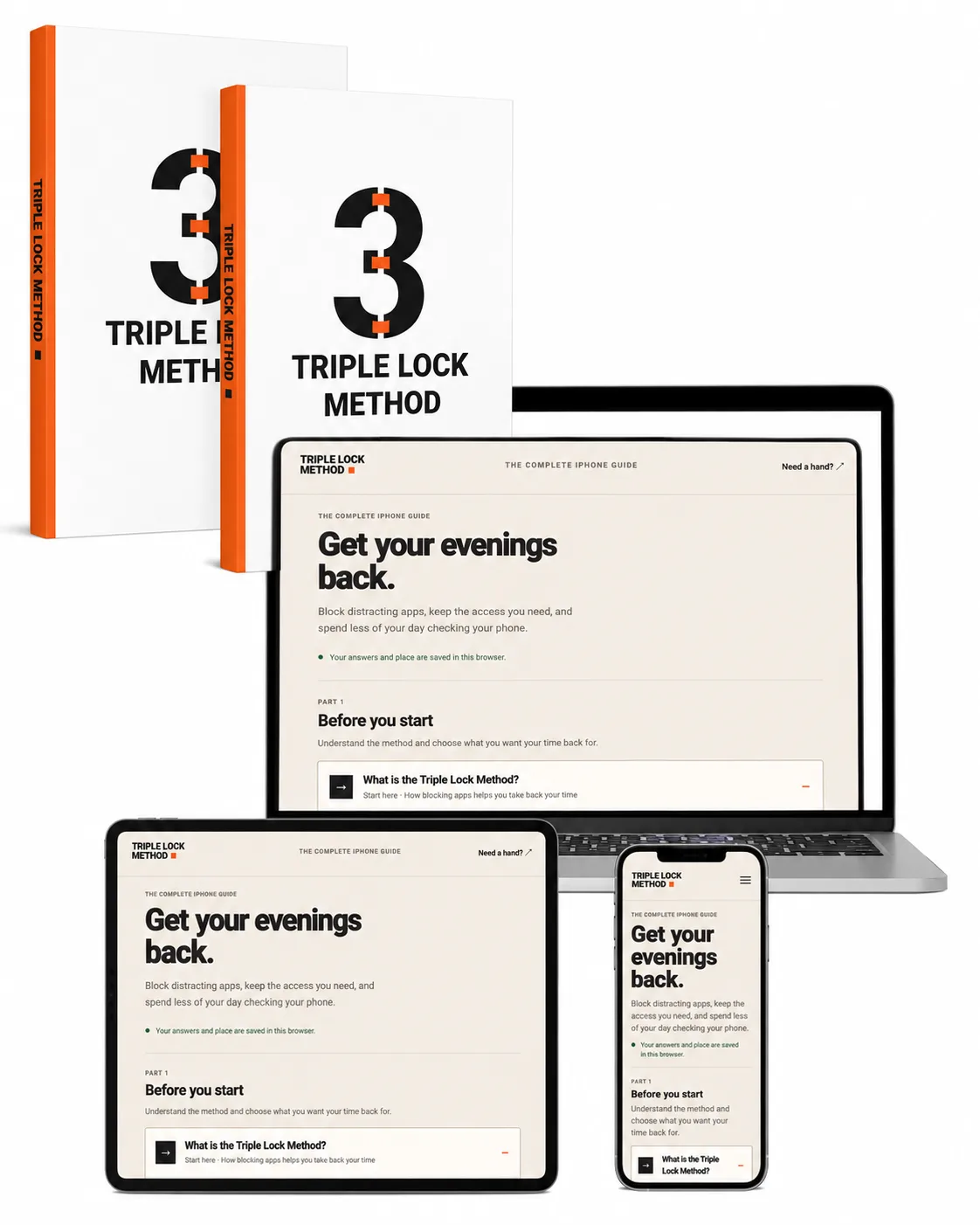
HELP WHEN REAL LIFE HAPPENS
The mini-course keeps helping after the first setup, with practical sections you can return to.
A FAIR QUESTION
A block can stop you opening an app. But if you keep overriding it, switching it off or scrolling as soon as it ends, the habit can carry on.
Triple Lock combines three restrictions instead of relying on one. Scheduled blocks protect the hours you choose. ScreenZen’s all-day block and settings timer make unlocking take a deliberate effort. Time limits stop useful access turning into an open-ended scrolling session.
Using the tools together adds extra steps between wanting to check and getting into the app. You keep access where you need it, with more resistance around the habits you want to break.
The course shows you how to put that setup together, check the easy ways around it and adjust it when something isn’t working.
WHY WE BUILT TRIPLE LOCK
My phone kept taking time from all three. I wanted to be building something and enjoying the people around me. Instead, I kept finding myself looking down. What bothered me was how little I had to show for the hours I was giving it.
Over several years, I tried different restrictions, kept what helped and adjusted what didn’t. The method grew almost by accident from the routine that worked best for me.
Triple Lock turns that routine into a guide you can follow, so you can start putting your attention where you want it.
START MAKING ROOM
You already know what you’d rather be doing.
Give it a place in your day.
 THE TRIPLE LOCK METHOD
Read online in your browser. Follow the written lessons while you set up your iPhone, then return to the guide whenever you need a refresher.
✓ 30-day money-back guarantee
For iPhone. Third-party apps are not included. Paid blocking features may cost separately; check the current trial and renewal terms.
TRY IT FOR YOURSELF
Give the mini-course a try. If it’s not for you, request a refund within 30 days of purchase.
How to request a refund ↗A FEW PRACTICAL QUESTIONS
It’s a self-paced online mini-course with written lessons and screenshots that teaches you how to configure existing apps, for app blocking. You are buying the lessons, instructions and method, not an app subscription.
Choose protected hours around your work, then set an allowance for useful access. The guide explains how the restrictions play different roles.
You select what to restrict. Keep essential communication, navigation and other necessary apps available, and test your setup on your phone.
Yes. The guide uses third-party apps, and some paid blocking features require a separate subscription. Check the offer, trial length and renewal price shown when you sign up.
This edition is written for iPhone. It is not an Android or desktop setup guide.
The guide includes troubleshooting and a short reset process. You can return to those sections, adjust the setup and carry on.
THE NEXT HOUR CAN BE DIFFERENT